The office app
Download the office
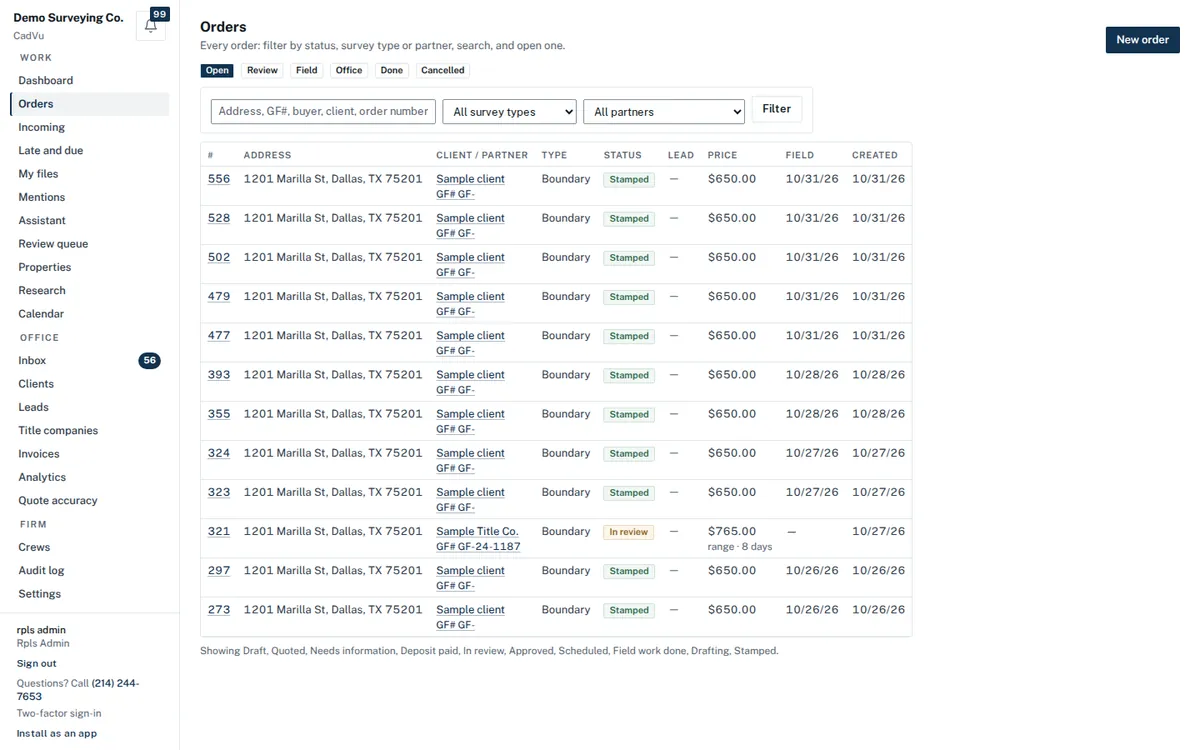
Your firm’s office (orders, incoming work, calendar, clients, invoices and messages) as an app on your computer and phone. It installs from the browser in a few seconds, on Windows, Mac, Android, iPhone and iPad.
- Included with CadVu
- No app store
- Notifications
What you get
The office as a program of its own
- Its own window and icon. The office opens from the Start menu, the Dock or the home screen, like any program, without a browser tab.
- Nothing to update. It is the same office as in the browser, always the current version; no store, no installer.
- Notifications. New website bookings, client messages, new leads and review tickets reach you even when the office is closed.
- Same sign-in. The sign-in you use in the browser, with two-factor sign-in if you have it on; your firm’s data stays on our servers, not on the device.
- Says when it is offline. Without a connection it tells you so and opens again by itself when you are back online.
- Crews too. Crew members install the field app the same way from the crew page on their phones; it works without signal.
Install
Install it on your device
Open the office in the browser named on the card, then follow the steps. Each person installs it on each device they use.
Windows · Chrome or Edge
- 1Open the office and sign in.
- 2Click the install icon at the right end of the address bar, or open the browser menu: Chrome “Cast, save and share → Install page as app”, Edge “Apps → Install this site as an app”.
- 3The office opens in its own window, with CadVu in the Start menu and on the taskbar.
Firefox does not install web apps: use Chrome or Edge for the app, or keep the office in a Firefox tab.
Mac · Chrome or Edge
- 1Open the office and sign in.
- 2Click the install icon at the right end of the address bar, or the menu: Chrome “Cast, save and share → Install page as app”, Edge “Apps → Install this site as an app”.
- 3The office opens in its own window and stays in the Dock and in Launchpad.
Mac · Safari
- 1Open the office in Safari and sign in.
- 2Choose File → Add to Dock (macOS Sonoma or later), then Add.
- 3The office opens from the Dock in its own window.
Android · Chrome
- 1Open the office in Chrome and sign in.
- 2Tap the menu (⋮) → Install app (or Add to Home screen → Install).
- 3The office opens from its icon on the home screen, full screen.
iPhone and iPad · Safari
- 1Open the office in Safari and sign in.
- 2Tap Share (the square with an arrow) → Add to Home Screen → Add.
- 3Open the office from its Home Screen icon. Notifications work only from there (iOS 16.4 or later).
Notifications
Hear about new work with the office closed
- 1Open the office (installed or in the browser) and sign in.
- 2On a computer: at the bottom of the left menu. On a phone: tap your name under the menu.
- 3Switch on “Notifications on this device” and allow notifications when the browser asks.
Each device is turned on separately, and signing out turns it off on that device. Every notice also stays in the office’s bell. On iPhone and iPad, add the office to the Home Screen first (iOS 16.4 or later).
Not on CadVu yet?
For licensed Texas land-surveying firms: your website, instant quotes and the office.